
Every repair in GVCarService-2 is a work order attached to a vehicle. Services, parts, the quote, recommendations, notes, expenses, photos, invoices and reminders are all kept with it, so the vehicle's service history builds up by itself.
Before you start
- The vehicle must be registered. If it is new to the workshop, add it first.
- Have the current mileage and the customer's description of the problem ready.
Steps
-
Open the vehicle's service history
In Cars and clients select the vehicle and click Service history. You can also click New repair on the dashboard and choose the vehicle. At the top you see the registration number, make and model, customer, phone, e-mail and VIN, and below them the list of previous repairs.
-
Click New repair order
The form New work order opens. The Order № is assigned when you save.
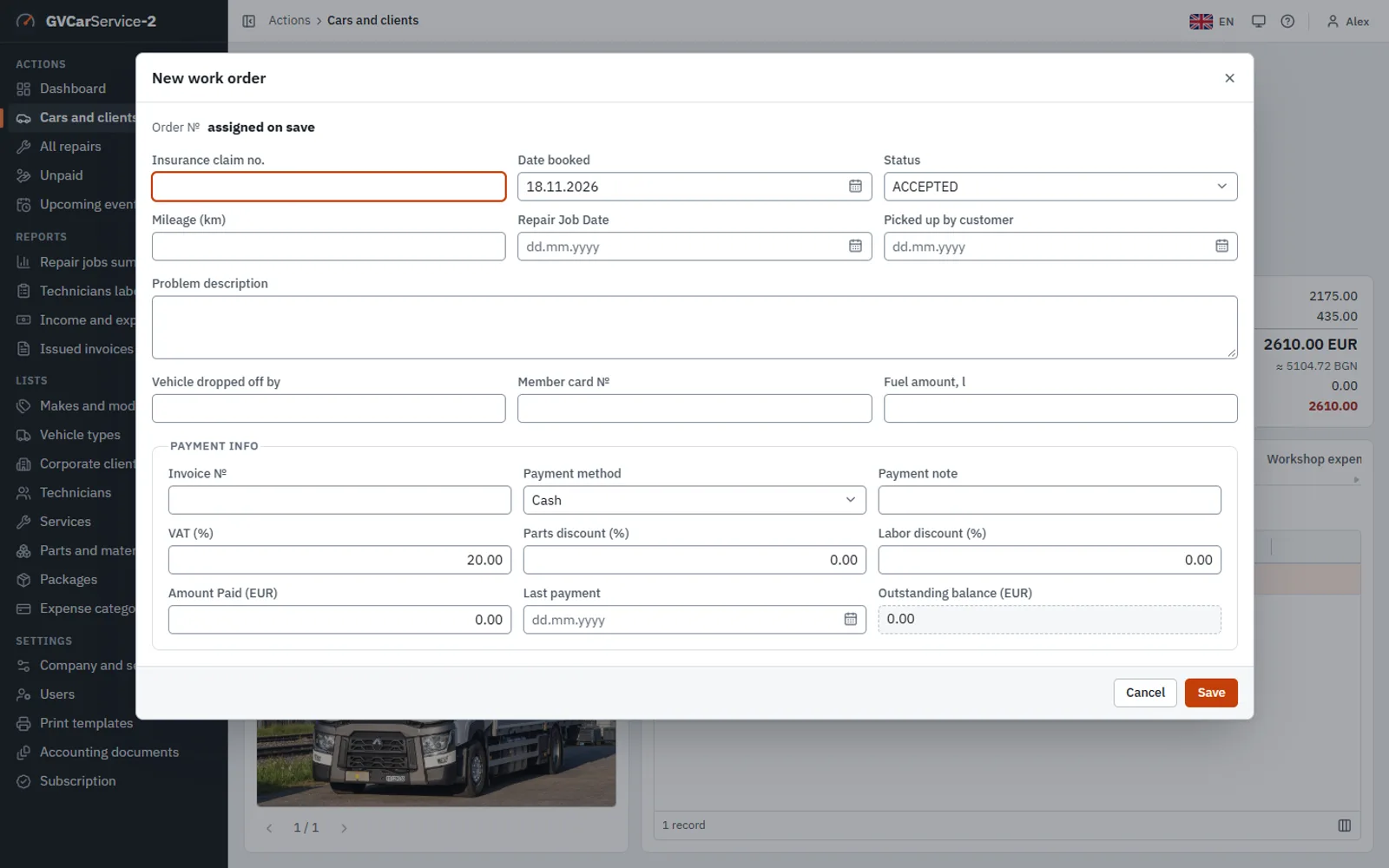
The new work order form -
Fill in the reception details
- Date booked – today's date is suggested;
- Status – usually ACCEPTED when the vehicle arrives;
- Mileage (km);
- Problem description – the customer's complaint in their own words;
- Vehicle dropped off by, Fuel amount, l, Insurance claim no. and Member card № when they apply.
Leave Repair Job Date and Picked up by customer empty for now. You fill them in when the work is done and the vehicle is collected.
-
Check the payment details
In PAYMENT INFO check the Payment method (Cash or Bank) and the VAT (%), which comes from the company settings. If the customer gets a discount, enter it in Parts discount (%) or Labor discount (%).
-
Save
Click Save. The work order appears at the top of the vehicle's repair list with its number, status, date booked and mileage.
-
Move the order through its statuses
As the work progresses, select the order, click Edit and change the Status: ACCEPTED → IN PROCESS → FINISHED → WAITING FOR PAYMENT → PAID. When the work is done, fill in the Repair Job Date, and when the customer collects the vehicle, the Picked up by customer date.
Result
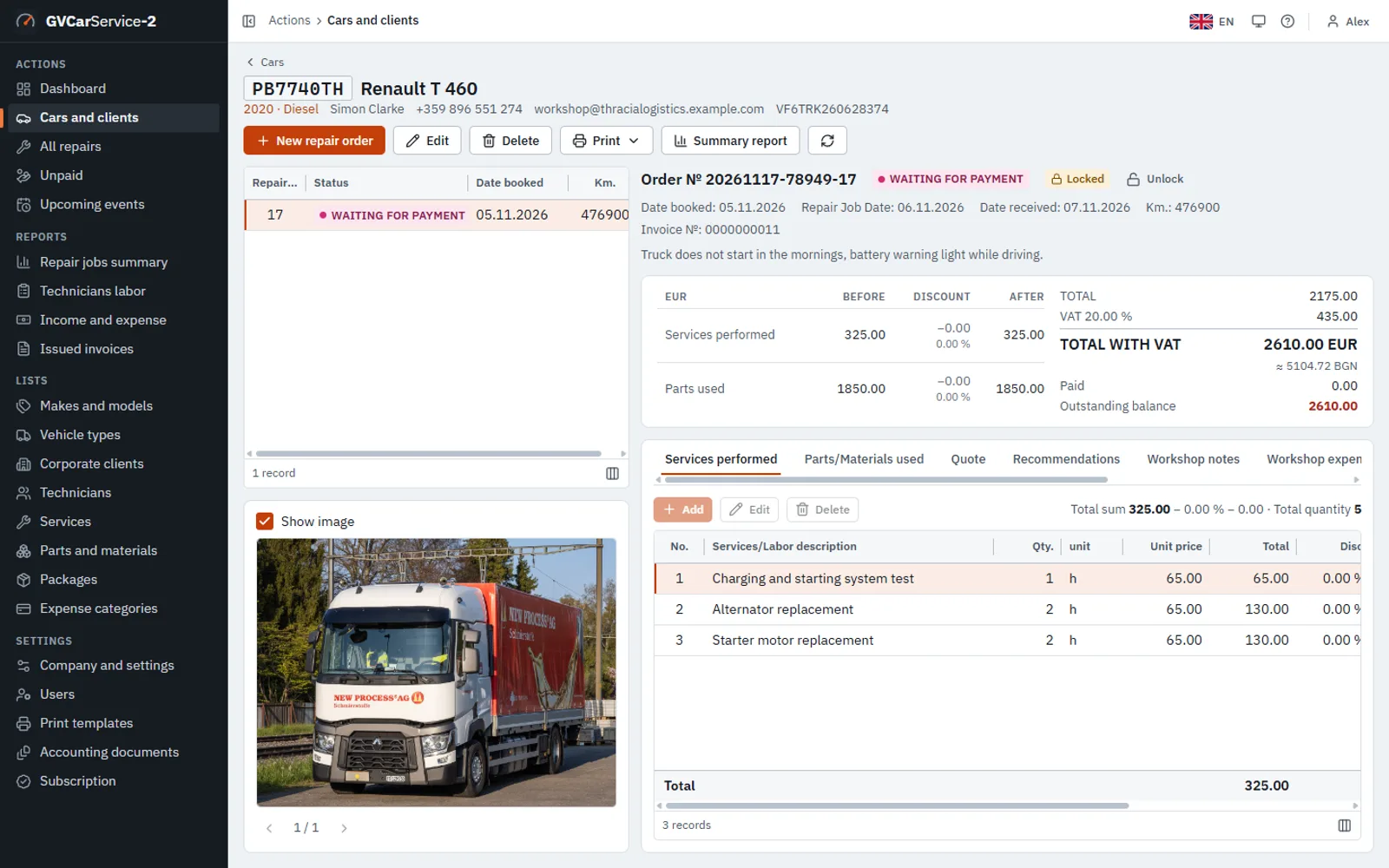
Select the order to see its summary on the right: the order number, status, date booked, mileage, the problem description and the totals before and after discount, VAT, the total with VAT, the amount paid and the outstanding balance. The tabs below hold everything done on the vehicle.
Tips
- Open the order as soon as the vehicle arrives, even before you know what needs doing. The Quote tab lets you prepare the price before the work starts.
- Print a reception form for the customer to sign: Print → Print, then choose the template.
- The Repairs in progress figure on the dashboard and the lists of repairs depend on the statuses. Keep them up to date and the dashboard stays accurate.