
All reports are in the menu under Reports, plus Unpaid under Actions. They work the same way: set the filters, click Execute, then read or export the result.
Which report to use
- Repair jobs summary – how many repairs and for how much, by repair job, make, corporate client or vehicle;
- Technicians labor – who did which work and how much each technician earned (see Technicians' labour);
- Income and expense – income, workshop expenses and profit for each repair;
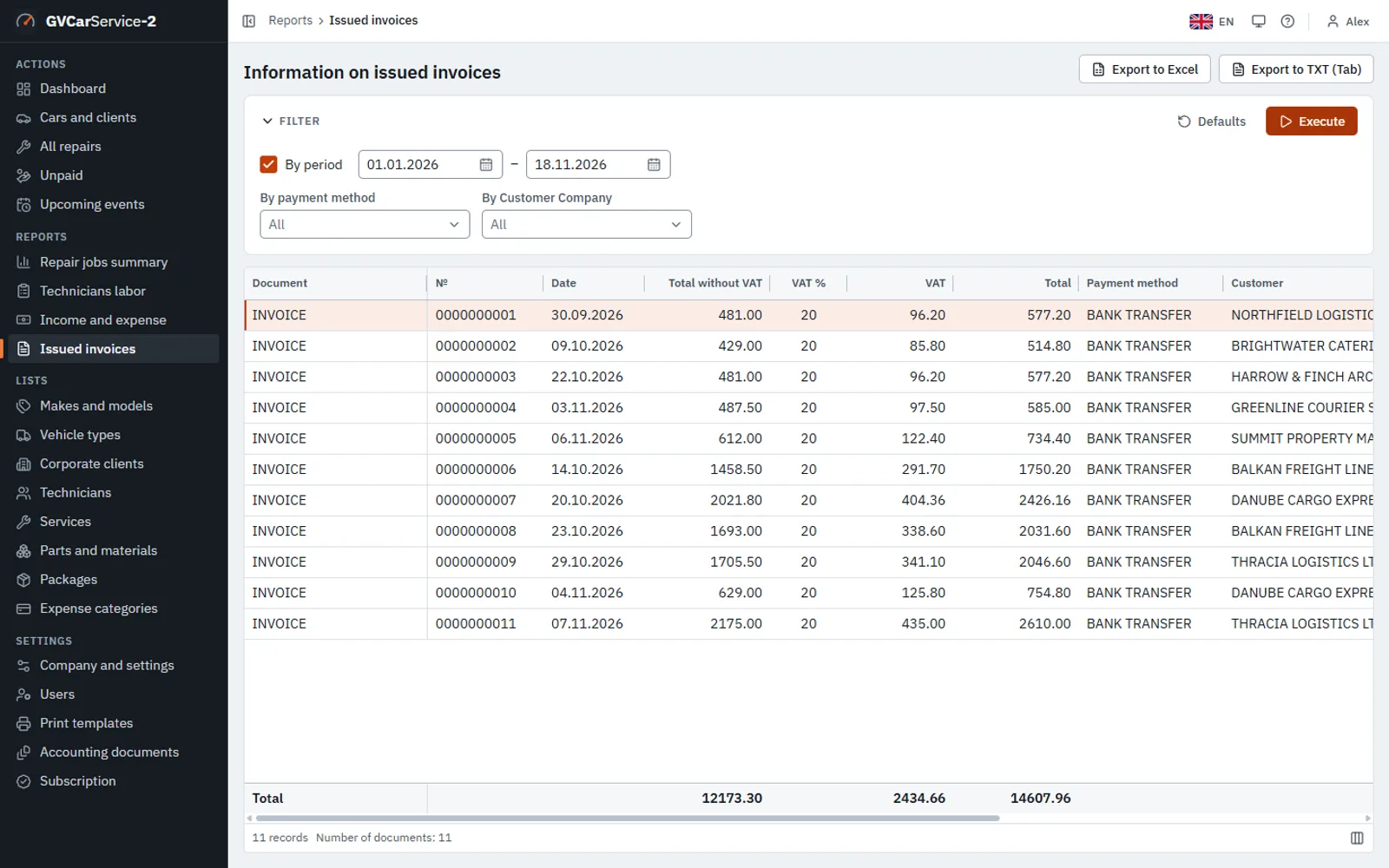
- Issued invoices – the invoices issued for a period;
- Unpaid – who still owes money (see Payments and amounts owed).
Steps
-
Open the report
Open the menu and choose the report under Reports. Until you run it, the page says Set the filters and load the data.
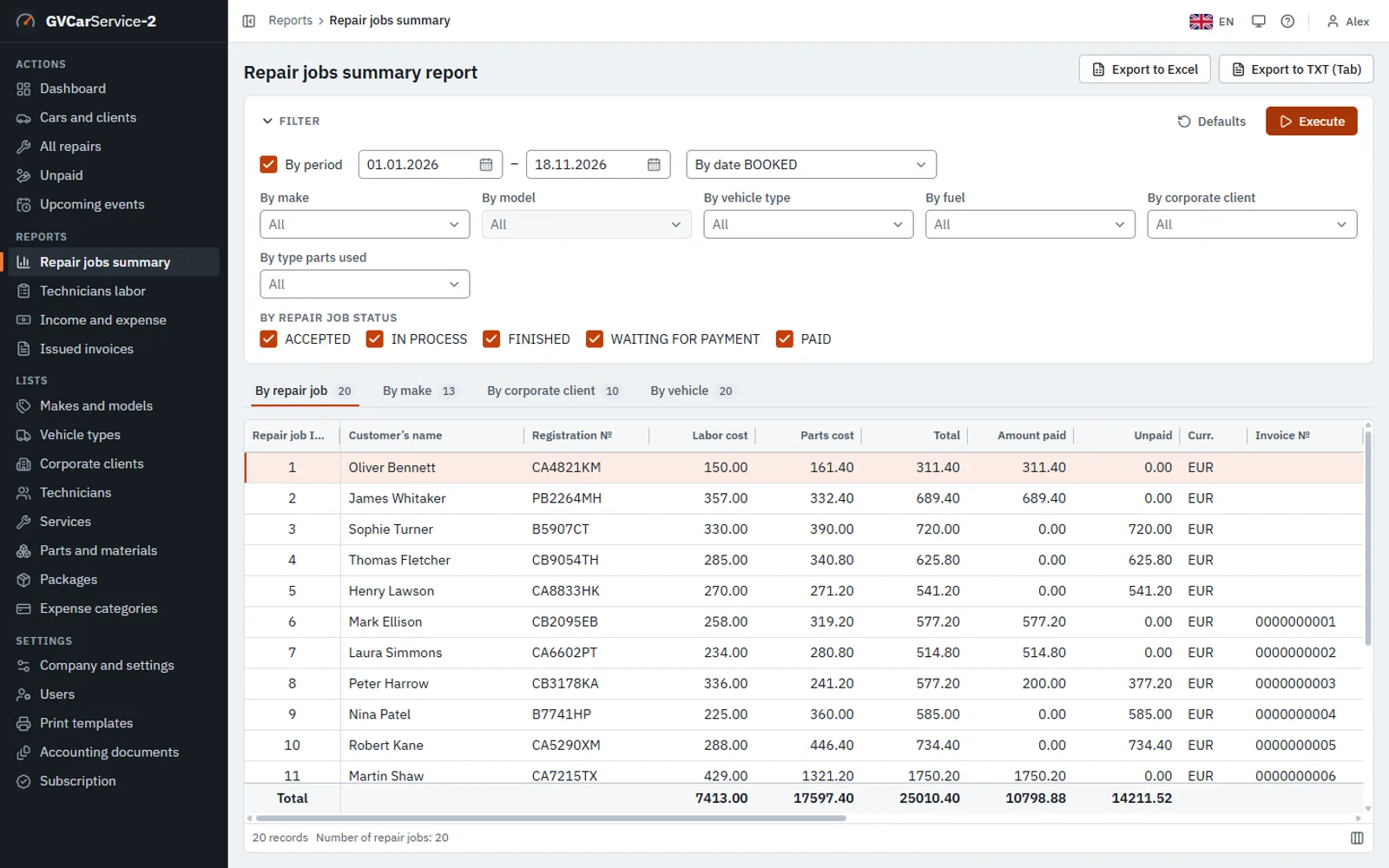
The repair jobs summary report -
Set the filters
In FILTER choose the period in By period (by default by the date the repair was booked). Narrow it further By make, By model, By vehicle type, By fuel or By corporate client, and under BY REPAIR JOB STATUS tick the statuses to include. Defaults resets the filters.
-
Click Execute
The report is shown. Where there are several views, such as By repair job, By make, By corporate client and By vehicle, switch between them above the table.
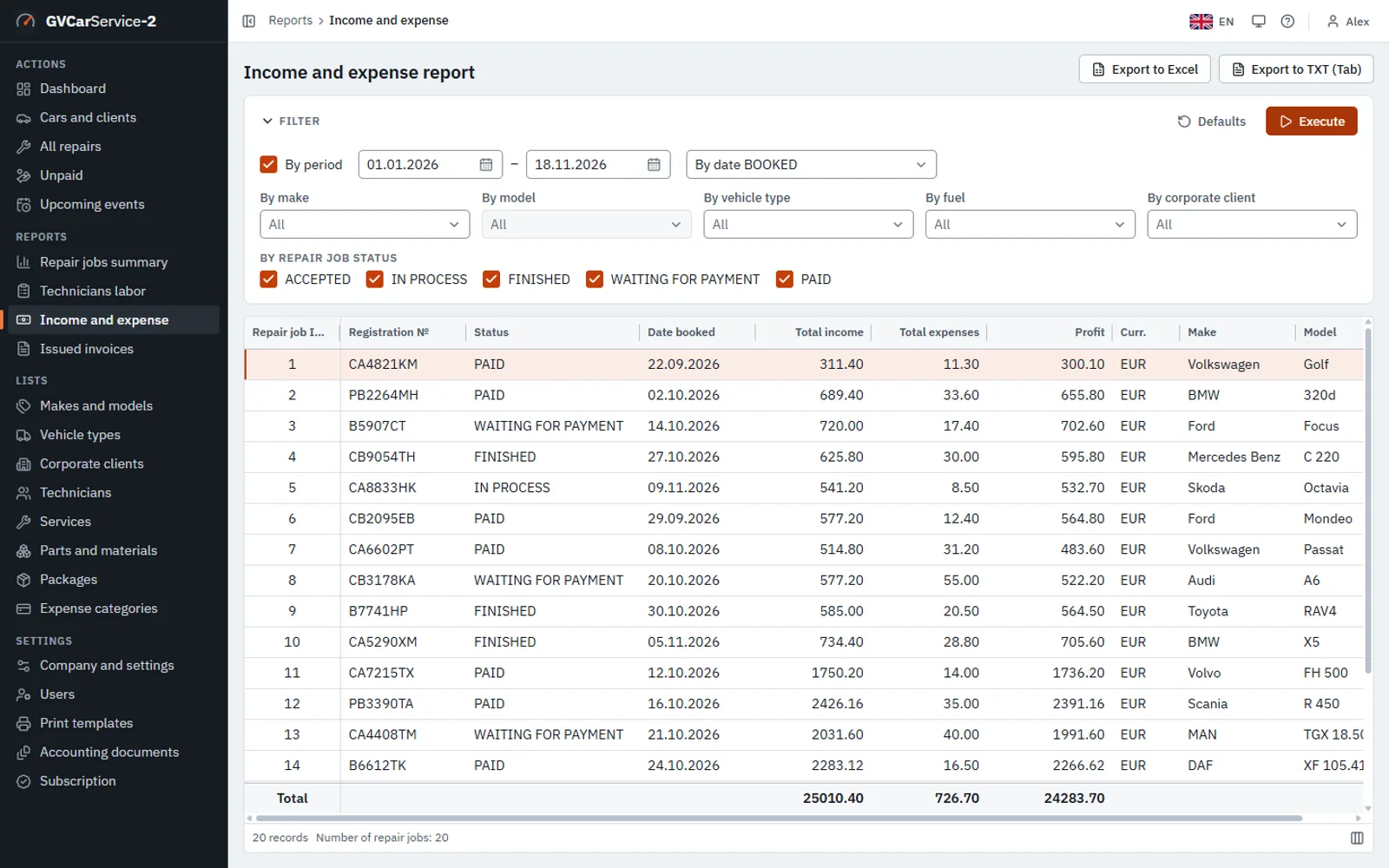
The income and expense report with the profit per repair -
Export
Click Export to Excel to open the report in a spreadsheet, or Export to TXT (Tab) for a text file you can import into another program.
Result
You have the figures for the period you need, on screen or in Excel, for example for the monthly results or for your accountant.
Tips
- For the profit to be accurate, record workshop expenses on each order. See Recommendations, notes, expenses and photos.
- For a single vehicle, use the Summary report button in Cars and clients or in its service history. It lists every service and part, with totals, payments and balance.
- To compare months, set the period to the whole year and export it to Excel.