
Before you start
- Open the vehicle's service history and select the work order. See Creating a work order.
- Services, parts and technicians you use often can be kept in Lists → Services, Parts and materials and Technicians, so you pick them instead of typing.
Add a service (labour)
-
Open the Services performed tab
Below the order summary, the Services performed tab lists the work done, with quantity, unit, unit price, total, discount, total after discount and technician.
-
Click Add
The form Add new labor item opens. Click Select from list to take a service from your list, or type it yourself.
-
Fill in the service
Enter the Description, Qty., Unit (for example hours) and Unit price. The Value is calculated. Choose the Technician who did the work and, if you pay technicians per job, the Technician Labor amount. Internal notes are not printed for the customer.
If your price includes VAT, click Remove VAT from price to convert it to a price before VAT.
-
Save
Click Save. The line appears in the table and the order totals are updated.
Add a part or material
-
Open the Parts/Materials used tab and click Add
The form Add new opens with Parts and materials list selected.
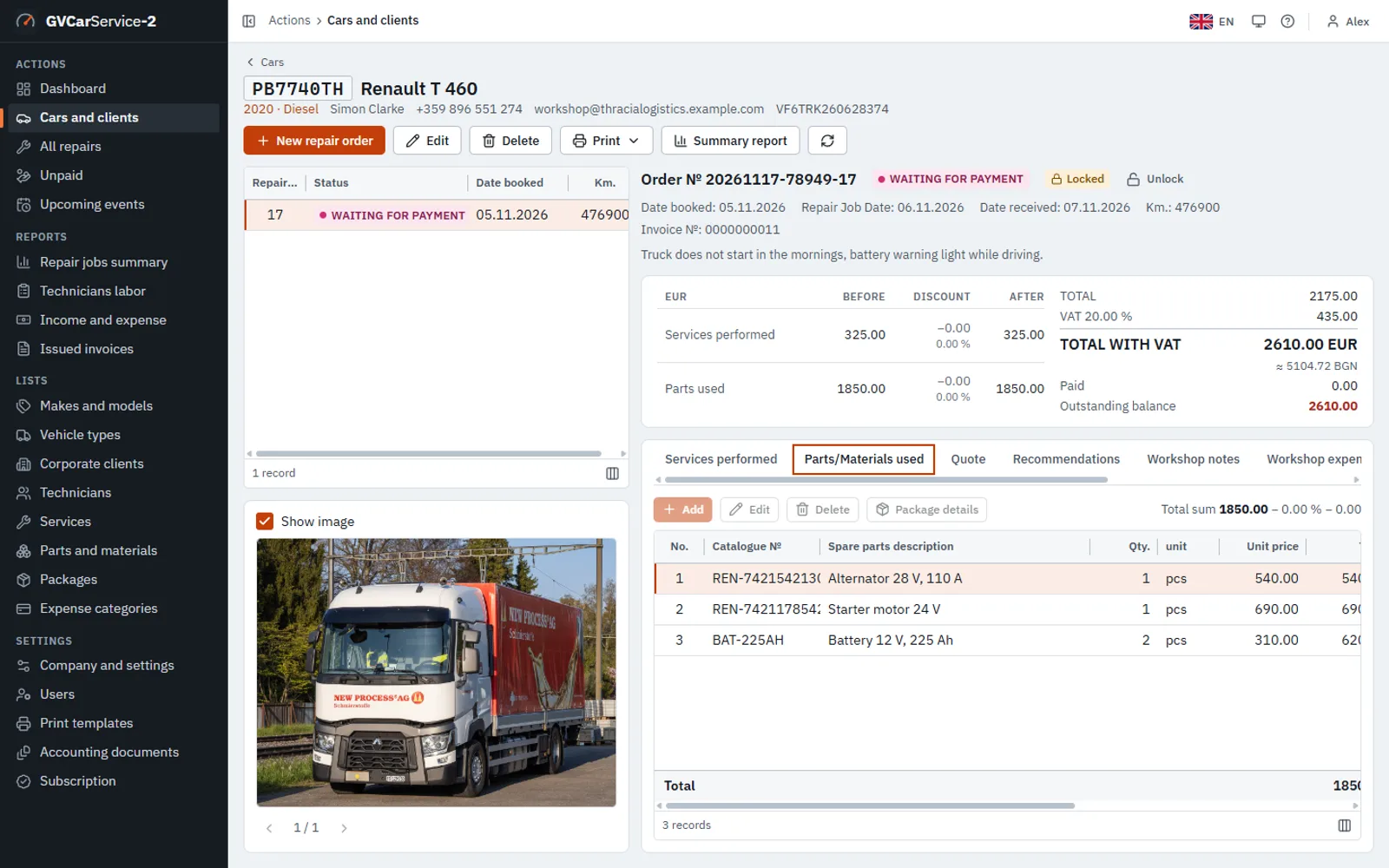
Parts and materials used on a repair -
Fill in the part
Enter the Catalogue №, choose the Type (Spare parts or Materials) and enter the Description, Qty., Unit and Unit price. Use Select from list to take the part from your list.
-
Save
Click Save. The parts total is added to the order.
Add a package in one step
A package combines services and parts that often go together, such as an oil service. Create packages in Lists → Packages: click Add, name the package, then add its items under Package includes.
To use a package, click Add in the Parts/Materials used tab, choose Packages/Bundles list and pick the package. Its items are added to the order. Select a line that came from a package and click Package details to see what it contains.
Discounts
Each line has its own discount. A discount for the whole order is set separately for labour and for parts: click Edit above the repair list and fill in Labor discount (%) and Parts discount (%). The order summary shows the totals before and after discount.
Result
The order summary shows Services performed and Parts used with the discount, the TOTAL, the VAT and the TOTAL WITH VAT.
Tips
- Use the Quote tab the same way to prepare a price before the work starts, and agree it with the customer.
- Always choose the technician. The technicians' labour report is built from it.
- Select a line and click Edit or Delete to correct it.