
Before you start
- Your company and bank details and the VAT rate must be set. See Company settings.
- The work order should be complete, with all services and parts.
Issue an invoice
-
Open the Accounting documents tab
Open the vehicle's service history, select the order and open the Accounting documents tab. Click Create. You can also use Print → Create document above the repair list.
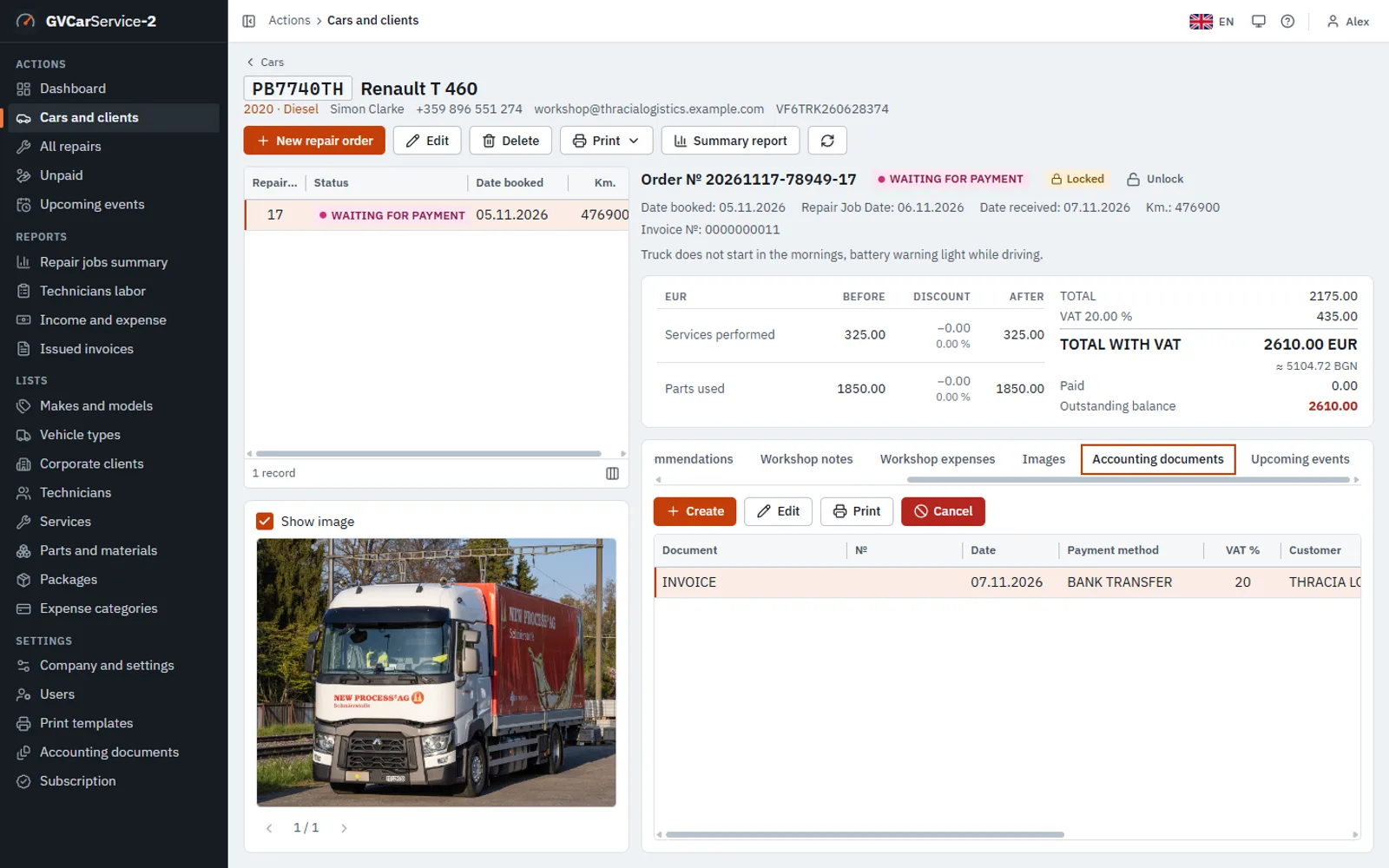
The accounting documents of a repair -
Choose the document and the customer
The form Add new accounting document opens. In Document type choose INVOICE, CREDIT NOTE or DEBIT NOTE. Check the Document date and choose the Customer. The Document № is filled in automatically.
-
Check the payment information
Choose the Payment method (BANK TRANSFER or CASH) and check the Payment date and Date of taxable event. The VAT % is the one of the work order. The Bank, IBAN and BIC come from the company settings.
If the invoice is without VAT, fill in Reasons for non-taxation and the legal Article, paragraph.
-
Add notes and save
In NOTES AND SIGNATURES fill in the Recipient. Issued by is filled in with your name. Use Print note/comment for text that should appear on the printed invoice. Click Save.
-
Print the invoice
Select the document in the tab and click Print, or use Print → Print document above the repair list.
Correct an invoice
To change an invoice, select it and click Edit. To correct an invoice that has already been given to the customer, issue a CREDIT NOTE or DEBIT NOTE: in CREDIT NOTE INFORMATION enter the original invoice in To invoice №, its date and the reason. Cancel cancels a document issued by mistake.
Print other documents
Click Print → Print above the repair list. In Select template choose the document you need, for example a reception form, a report of the work carried out, a work card, a handover protocol or a pro-forma invoice, and click Confirm print. The templates are managed in Settings → Print templates.
Result
The invoice appears in the order's Accounting documents tab with its number, date, payment method and customer, and in the Issued invoices report.
Tips
- For a corporate client, choose the company as the Customer, so that its UIC and VAT number appear on the invoice.
- Recording the payment is separate from issuing the invoice. See Payments and amounts owed.
- The types of accounting documents are set in Settings → Accounting documents.