
Before you start
- The web address of your GVCarService-2 account and your user name and password. You receive them from FORNEXT or from your local representative.
- A modern browser (Chrome, Edge, Firefox or Safari) on a computer or tablet. There is nothing to install.
Steps
-
Sign in
Open the address of your account. Enter your e-mail or user name and your password, and sign in. Tick the option to be remembered only on a computer that nobody else uses.
If you have forgotten your password, use the forgotten password link on the sign-in page.
-
Switch the interface language
Click the flag at the top right and choose English. The interface is also available in Bulgarian, Portuguese, German, Spanish, Greek, Polish, French and Romanian. The language changes at once, and you can switch back at any time.
-
Read the dashboard
After you sign in, the Dashboard opens. At the top are four figures:
- Payments this month, compared with last month;
- Outstanding balances – the total still owed and the number of repairs;
- Repairs in progress – how many are booked and how many are in progress;
- Invoices this month, with their total including VAT.
Below them you see the turnover by month (labour and parts), Upcoming events, the repairs In progress, the Largest outstanding balances and the Labor by technician this month. Click any line to open that repair or list.
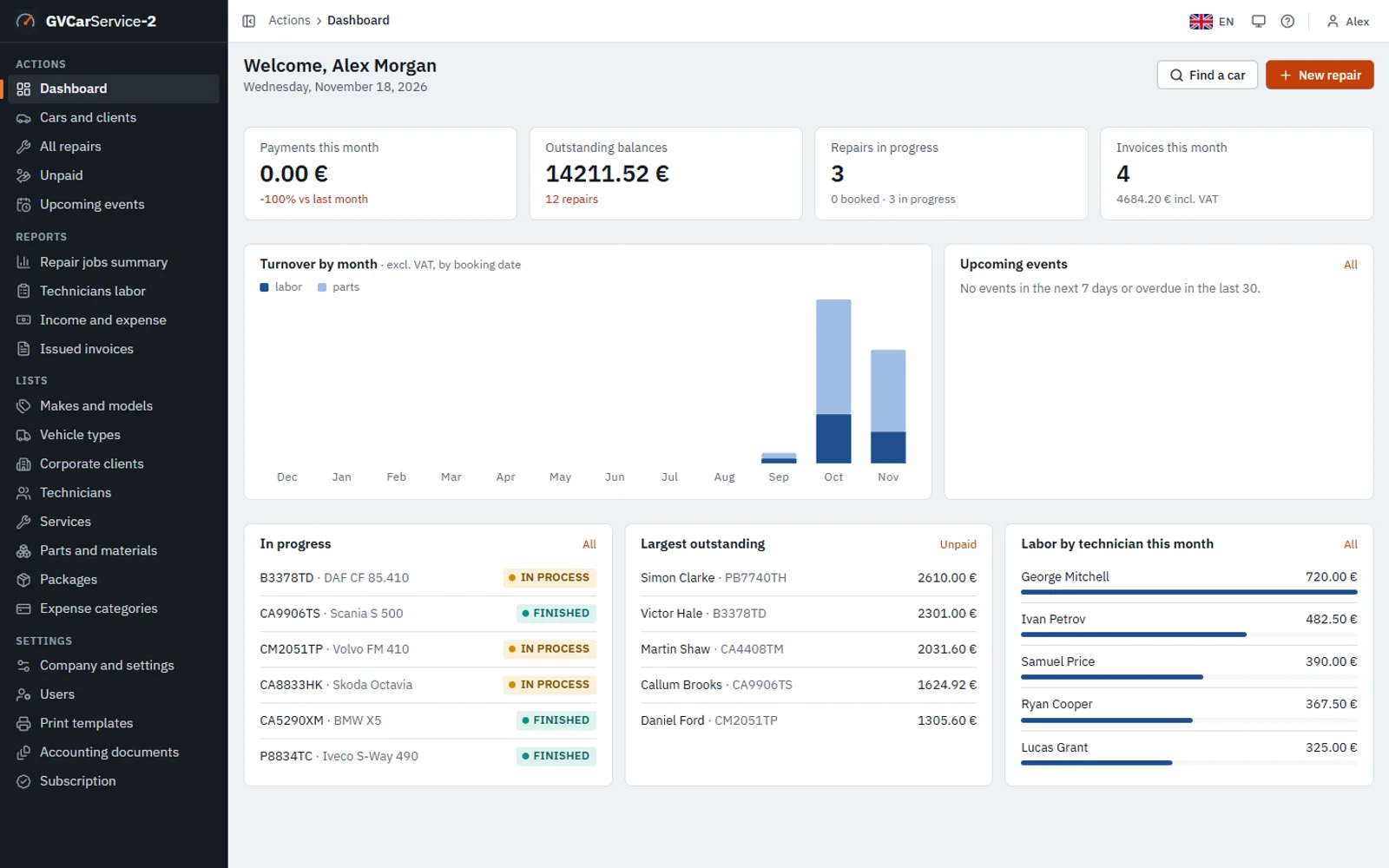
The dashboard with payments, balances, repairs in progress and turnover by month -
Start the most common tasks from the dashboard
Use Find a car to look up a vehicle, or New repair to choose a vehicle and open a work order for it.
-
Find your way around the menu
Open the menu with the button at the top left. It has four groups:
- Actions – Dashboard, Cars and clients, All repairs, Unpaid, Upcoming events;
- Reports – Repair jobs summary, Technicians labor, Income and expense, Issued invoices;
- Lists – makes and models, vehicle types, corporate clients, technicians, services, parts and materials, packages and expense categories;
- Settings – Company and settings, Users, Print templates, Accounting documents, Subscription.
Result
You are signed in, the interface is in your language and you know where to find vehicles, repairs, reports and settings.
Tips
- The number next to Upcoming events at the top of every page shows how many reminders are waiting.
- The Help button (question mark) and the light or dark theme switch are also at the top right.
- Your plan sets how many people can be signed in at the same time. Sign out on shared computers so that the session is free for a colleague.