
There are two places to search: Cars and clients when you are looking for a vehicle or a customer, and All repairs when you are looking for a work order.
Find a vehicle
-
Open Cars and clients
Open the menu and choose Cars and clients, or click Find a car on the dashboard.
-
Choose what to search by
In the list to the left of the search box choose Search by VIN №, Search by REGISTRATION №, Search by CUSTOMER or Search by keyword. You can type only part of a VIN or registration number.
-
Type and select
Type in the search box, select the vehicle in the list to see its details and click Service history to open its repairs.
Find a repair
-
Open All repairs
Open the menu and choose All repairs. The Repair Job List shows each repair with its order number, registration number, status, make and model, date booked, labour, parts, total, amount paid, payment due, customer and invoice number.
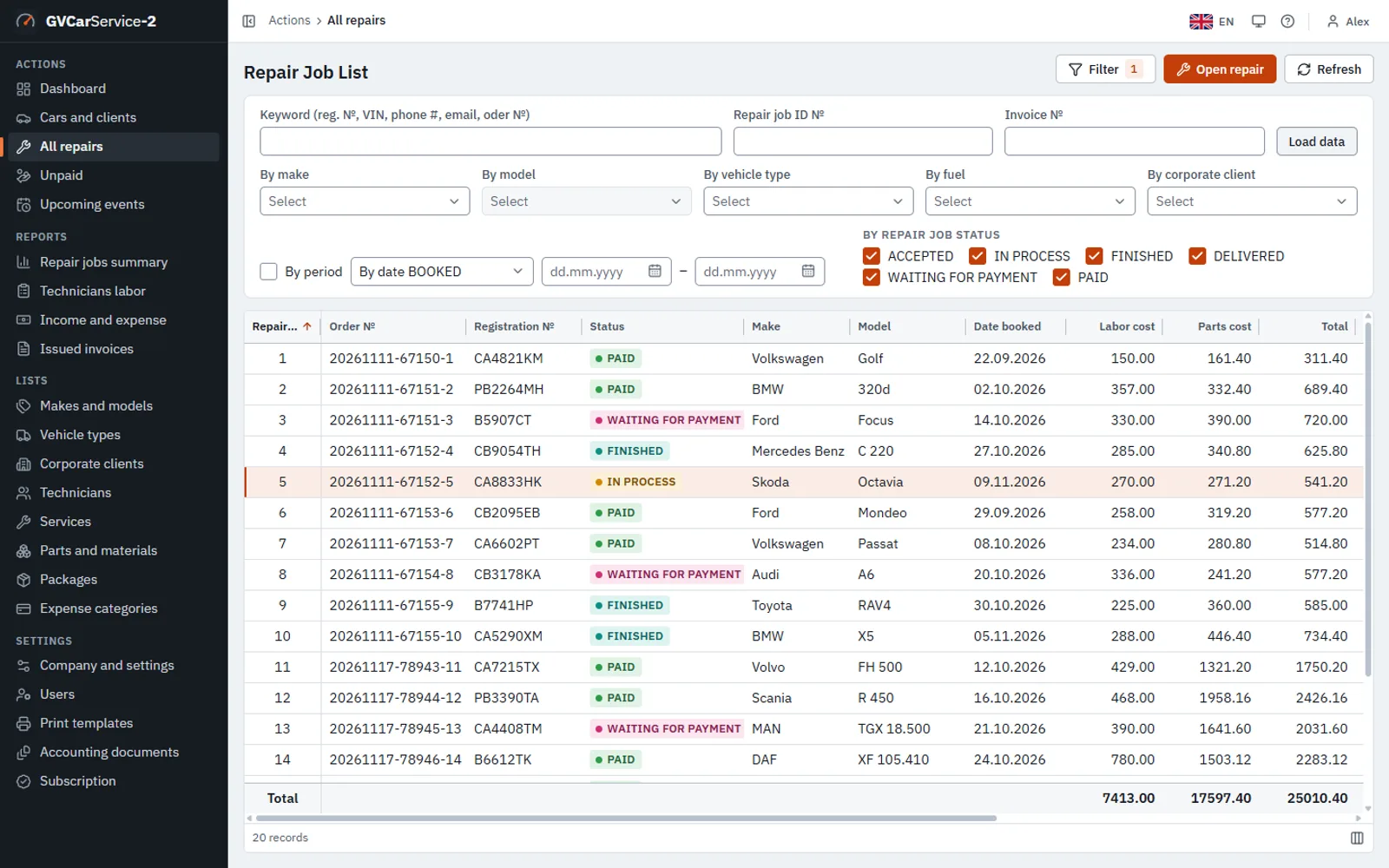
The repair list filtered by status -
Search by keyword or number
Type a registration number, VIN, phone, e-mail or order number in Keyword, or enter a Repair job ID № or Invoice №. Click Load data.
-
Or filter the list
Click Filter and narrow the list By make, By model, By vehicle type, By fuel, By corporate client and By period. Under BY REPAIR JOB STATUS tick the statuses you want: ACCEPTED, IN PROCESS, FINISHED, DELIVERED, WAITING FOR PAYMENT or PAID.
-
Open the repair
Select a line and click Open repair. The vehicle's service history opens with that work order selected.
Result
You reach the vehicle or the work order you need without scrolling through long lists.
Tips
- To see what the workshop is working on today, tick only ACCEPTED and IN PROCESS.
- Click Columns under the list to show or hide columns, and click a column header to sort by it.
- Press F5 or click the refresh button to reload the list after a colleague has made changes.