
GVCarService-2 records who carried out each operation and how much of the price goes to the technician. At the end of the month the report gives you each technician's earnings without manual counting.
Steps
-
Add your technicians
Open the menu and choose Lists → Technicians. Click Add, enter the Technician name and save. When someone leaves, mark them as Not active instead of deleting them, so their past work stays in the reports. Tick Show INACTIVE too to see them again.
-
Assign the technician to each service
When you add a service to a work order, choose the Technician in the Add new labor item form. In Technician Labor enter the amount that goes to the technician for this operation. The rest of the price stays with the garage.
-
Open the report
Open the menu and choose Reports → Technicians labor. Set the period and, if you want one person only, choose them in By technician. Click Execute.
-
Choose the view
Group the work By repair job, By technician, By labor, By date, By month and year or By labor, technicians and vehicles. Export it with Export to Excel if you calculate pay in another program.
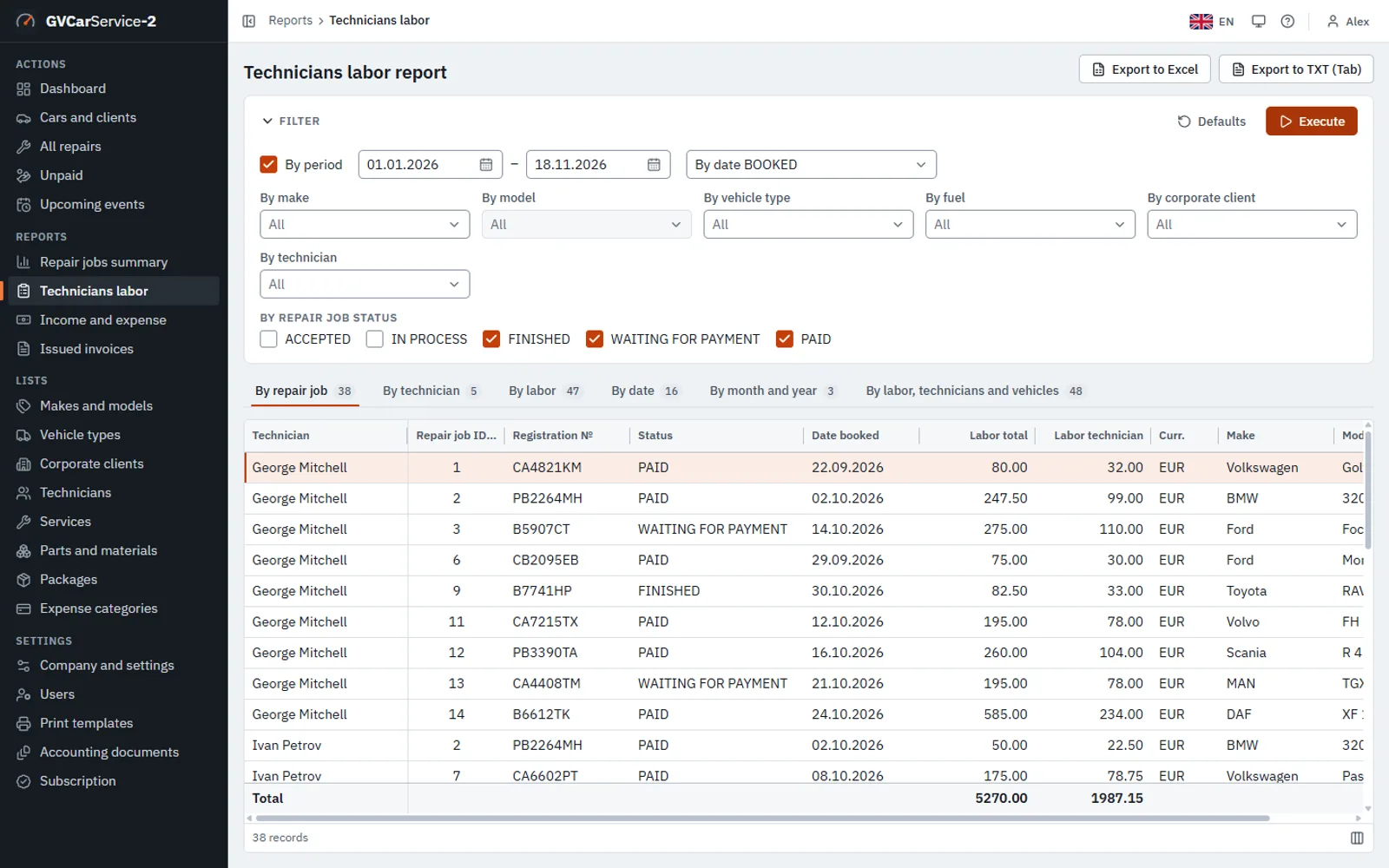
The technicians' labour report with each technician's earnings
Result
You see each technician's jobs, the labour total and their earnings for the period. The dashboard also shows Labor by technician this month.
Tips
- When two technicians work on the same job, add the work as two lines, one for each, so that each gets their share.
- Include only FINISHED, WAITING FOR PAYMENT and PAID repairs if you pay only for completed work.