
Before you start
- The registration number of the vehicle. The VIN, engine data and the customer's phone and e-mail are optional, but make searching and reminders easier.
- If the vehicle belongs to a company, add the company first as a corporate client.
Steps
-
Open Cars and clients
Open the menu and choose Cars and clients. The list shows every vehicle with its registration number, VIN, make, model, engine, vehicle type, fuel, power, year, customer and corporate client.
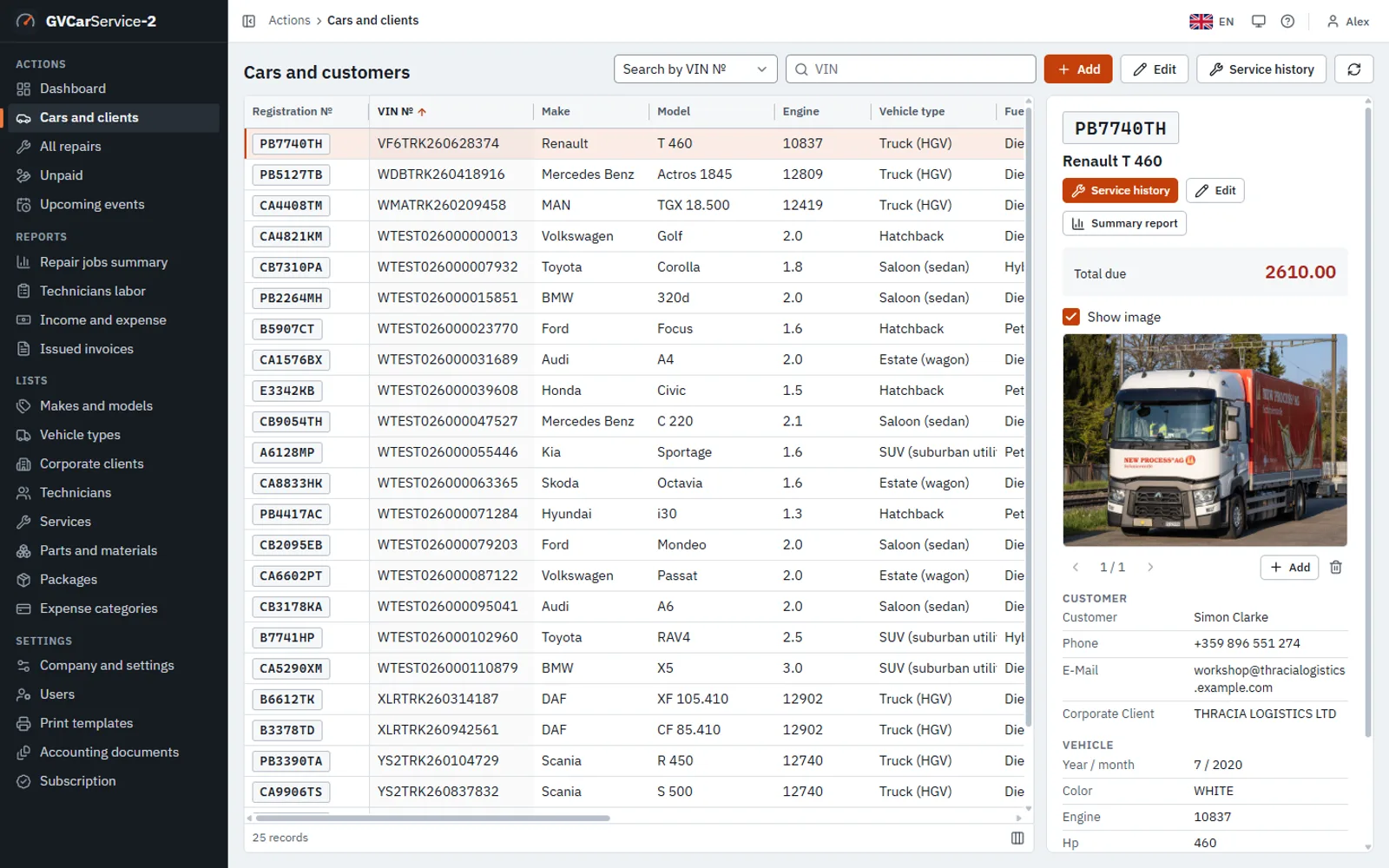
Cars and trucks in one list, with a truck selected -
Check that the vehicle is not already registered
Type the registration number or the VIN in the search box and look at the list. Registering the same vehicle twice splits its service history.
-
Click Add
Click Add (shortcut Ctrl+A). The form Add New Vehicle - customer opens.
-
Fill in the vehicle details
In VEHICLE DETAILS enter the Registration № and VIN №, and choose the Vehicle type (for example truck, saloon, estate, SUV or pickup), Make, Model and Fuel.
In VEHICLE SPEC add the Year (manuf.), Month, Engine, Power Hp or Power Kw, Color and Engine №.
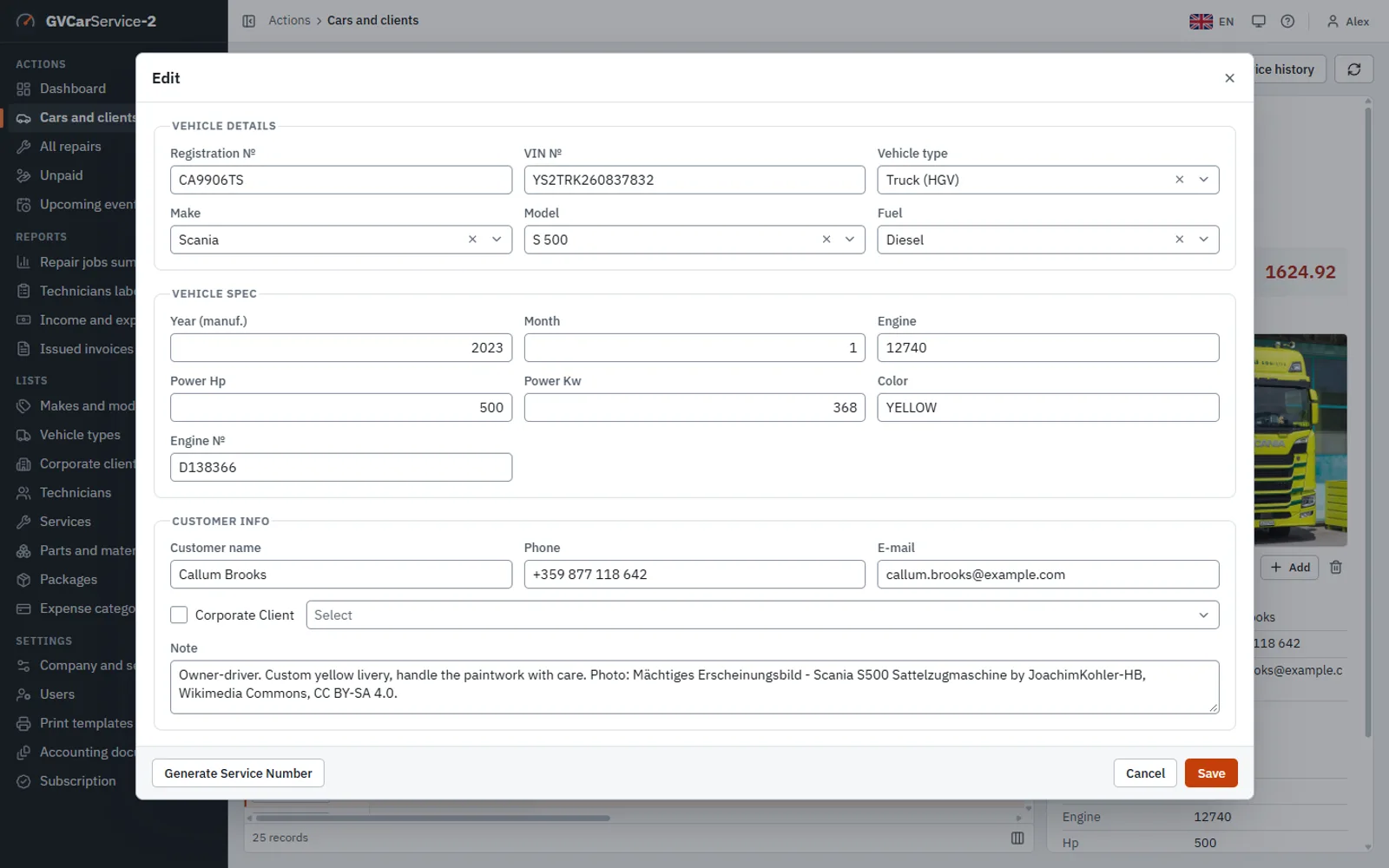
Vehicle and customer details -
Fill in the customer
In CUSTOMER INFO enter the Customer name, Phone and E-mail. If the vehicle belongs to a company, choose it in Corporate Client. Use Note for anything else worth knowing.
-
Save
Click Save. The vehicle appears in the list and is selected.
Result
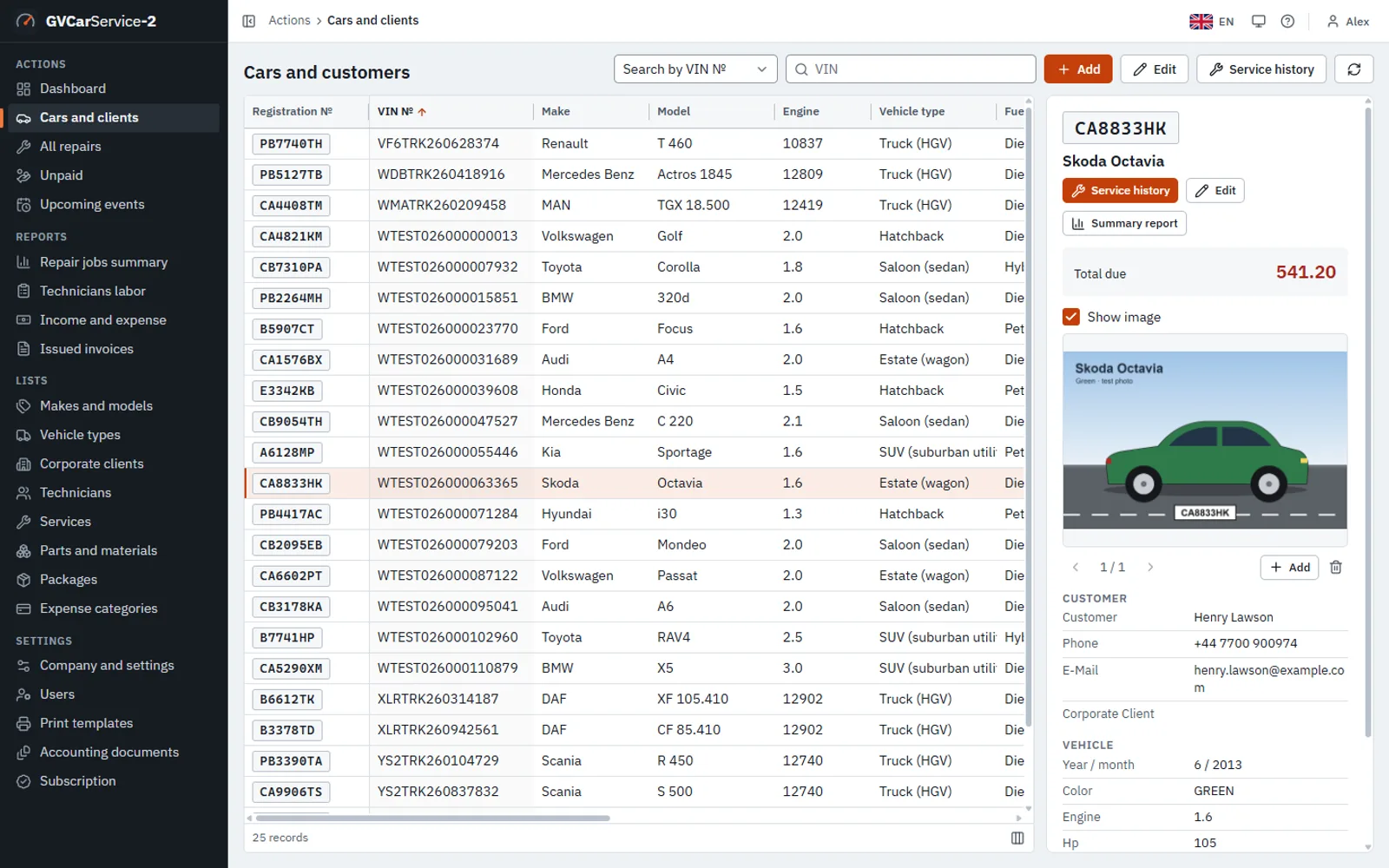
When you select the vehicle, the panel below the list shows its registration number, make and model, the Total due, the photo, and the customer and vehicle details. From there you can open the Service history, Edit the details or print a Summary report.
Tips
- To change the details later, select the vehicle and click Edit (Ctrl+E).
- Add a photo of the vehicle. It helps colleagues recognise it in the yard. Untick Show image to hide the photo.
- If a make, model or vehicle type is missing from the list, add it in Lists → Makes and models or Vehicle types.
- The Summary report lists all services and parts for the vehicle, with totals, payments and balance. You can print it for the customer.